MinTick Guide
MinTick keeps your tasks and projects on your Mac, iPad and iPhone. This page shows you around in five minutes, and tells you how to send feedback while you test.
MinTick 1.0 beta · Guide updated 10 November 2026
Start here
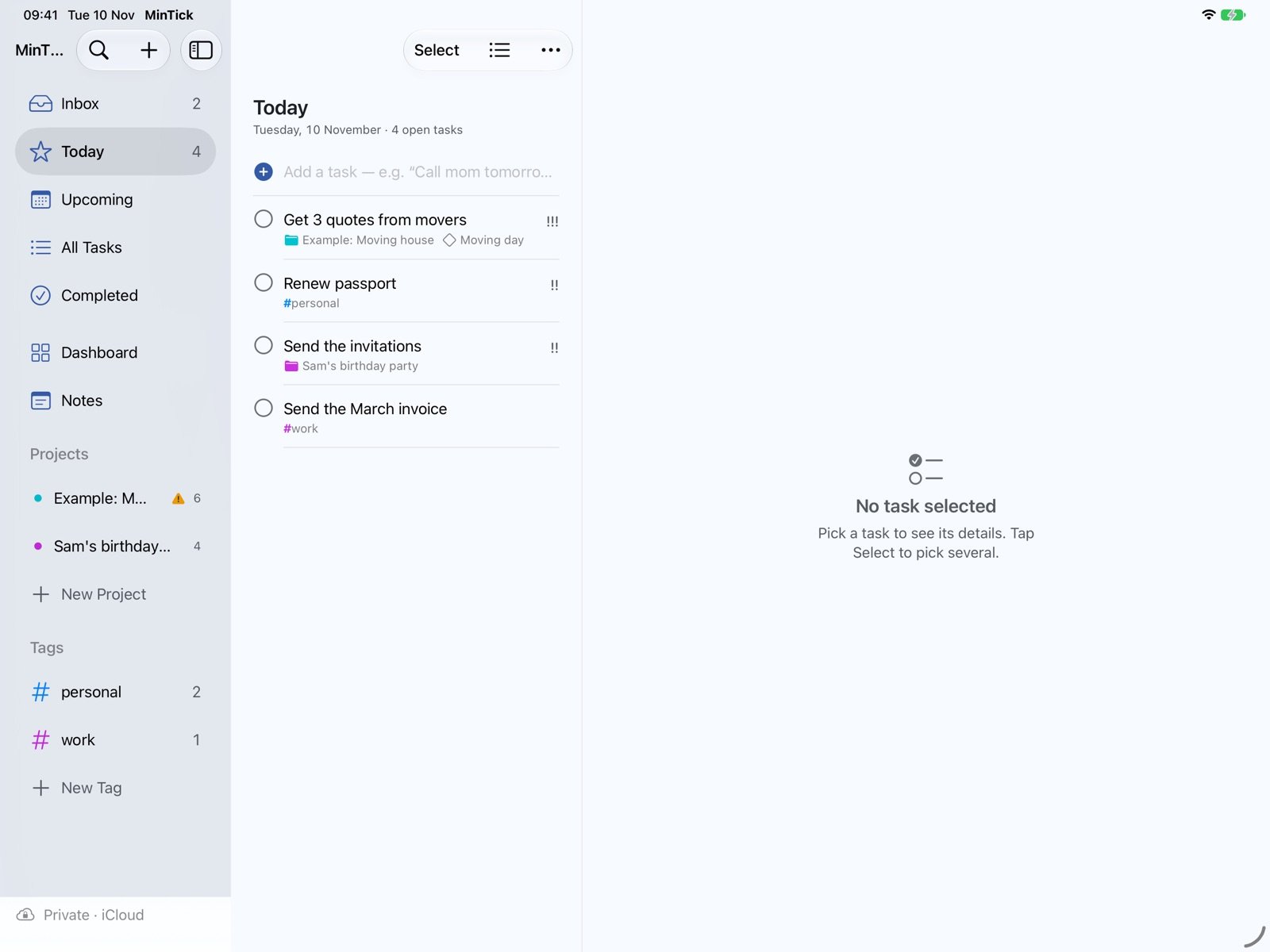
- Open TodayEverything due or starting today, with anything overdue on top.
- Type a task“Call mom tomorrow 3pm #family” sets the date and the tag for you.
- Try the exampleNo projects yet? Pick Try an Example Project in the sidebar to see one filled in.
Where your tasks live
- Inbox: new tasks without a project or a date. Sort them later.
- Today: due or starting today. Upcoming: everything with a later date.
- All Tasks and Completed: everything open, and everything ticked off.
- Projects, Tags, Dashboard and Notes sit below them in the sidebar.
Tick the circle in front of a task to finish it. Select a task to see and change its details.
Adding tasks quickly
Type in the field at the top of any list. MinTick picks out dates, tags and priority, and leaves the rest as the title.
| You type | MinTick understands |
|---|---|
Pay rent friday | Due this Friday |
Dentist 12 march | Due 12 March (also in 3 days, next week, weekend) |
Call Anna tomorrow 3pm | Due tomorrow; MinTick asks whether to remind you at 3 pm |
Water the plants every monday | Repeats every Monday (also every day, every month) |
#work · ! !! !!! | A tag · low, medium or high priority |
Dutch works too: morgen om 15 uur, elke maandag, over 3 dagen.
Projects: overview, list or board
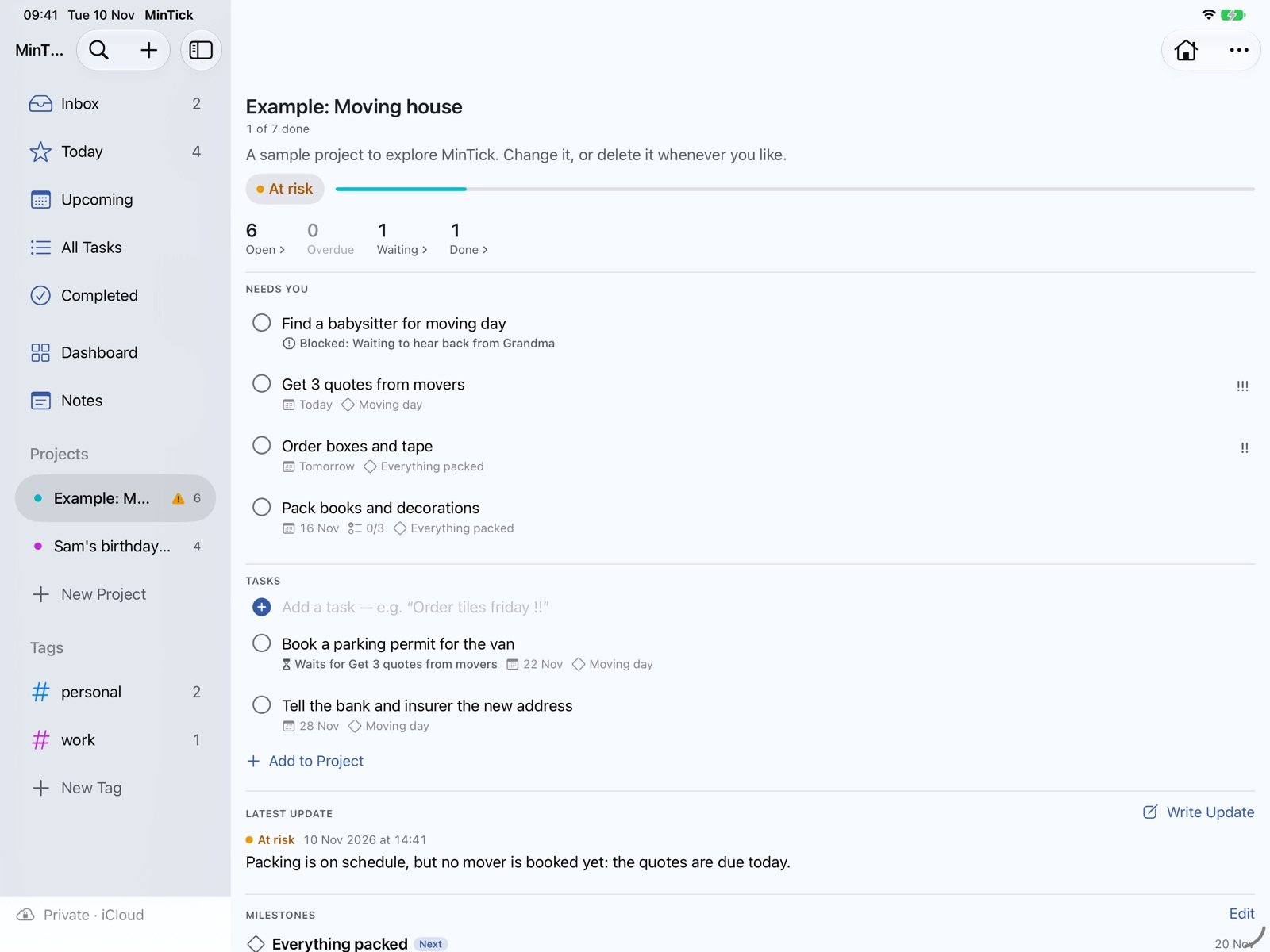
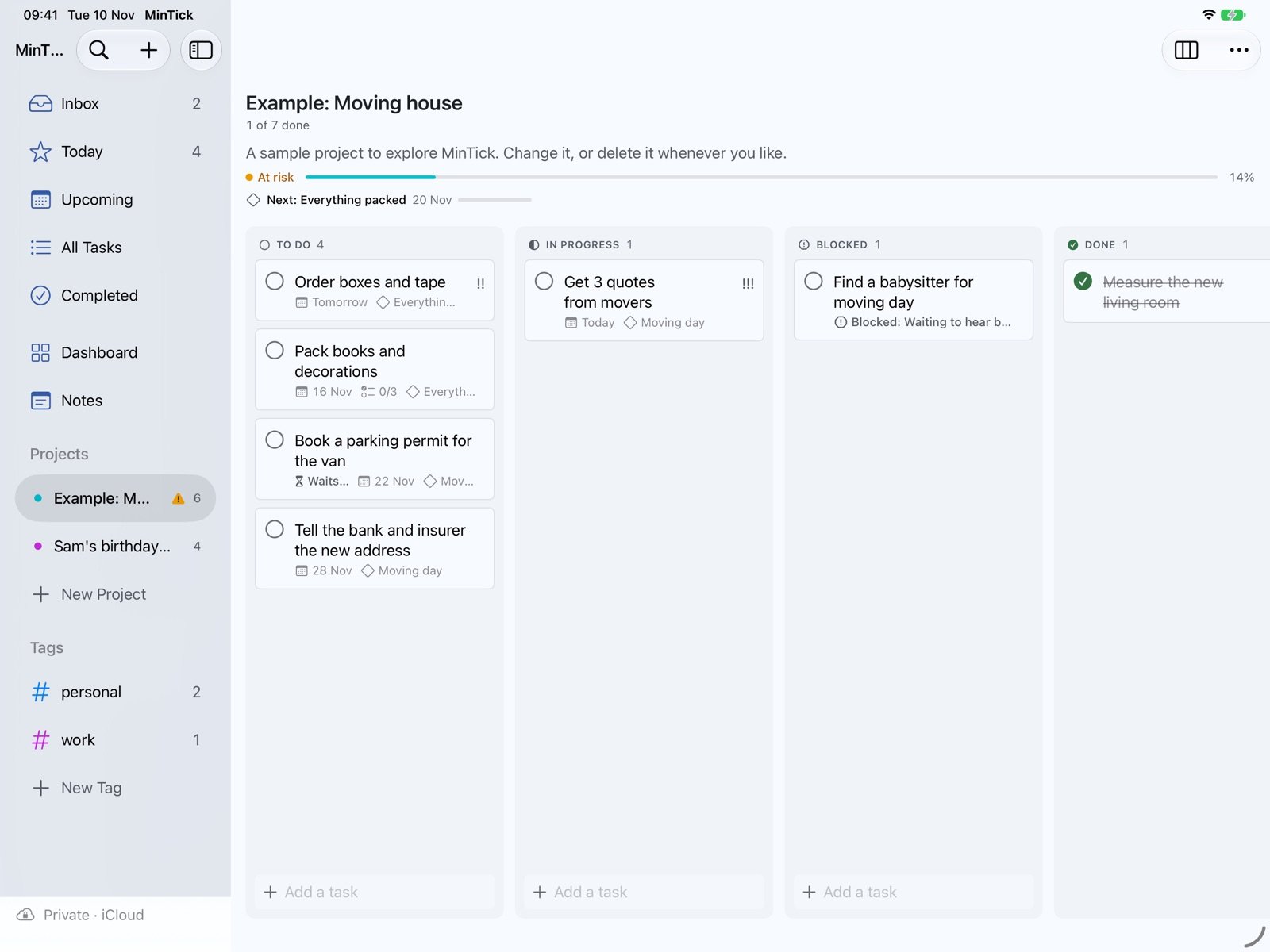
A project gathers the tasks for one goal. Its overview shows what needs you, the latest status update, milestones and risks. Switch to a list or a kanban board with the button at the top right. On a board, drag cards between columns to change their status.
Task details
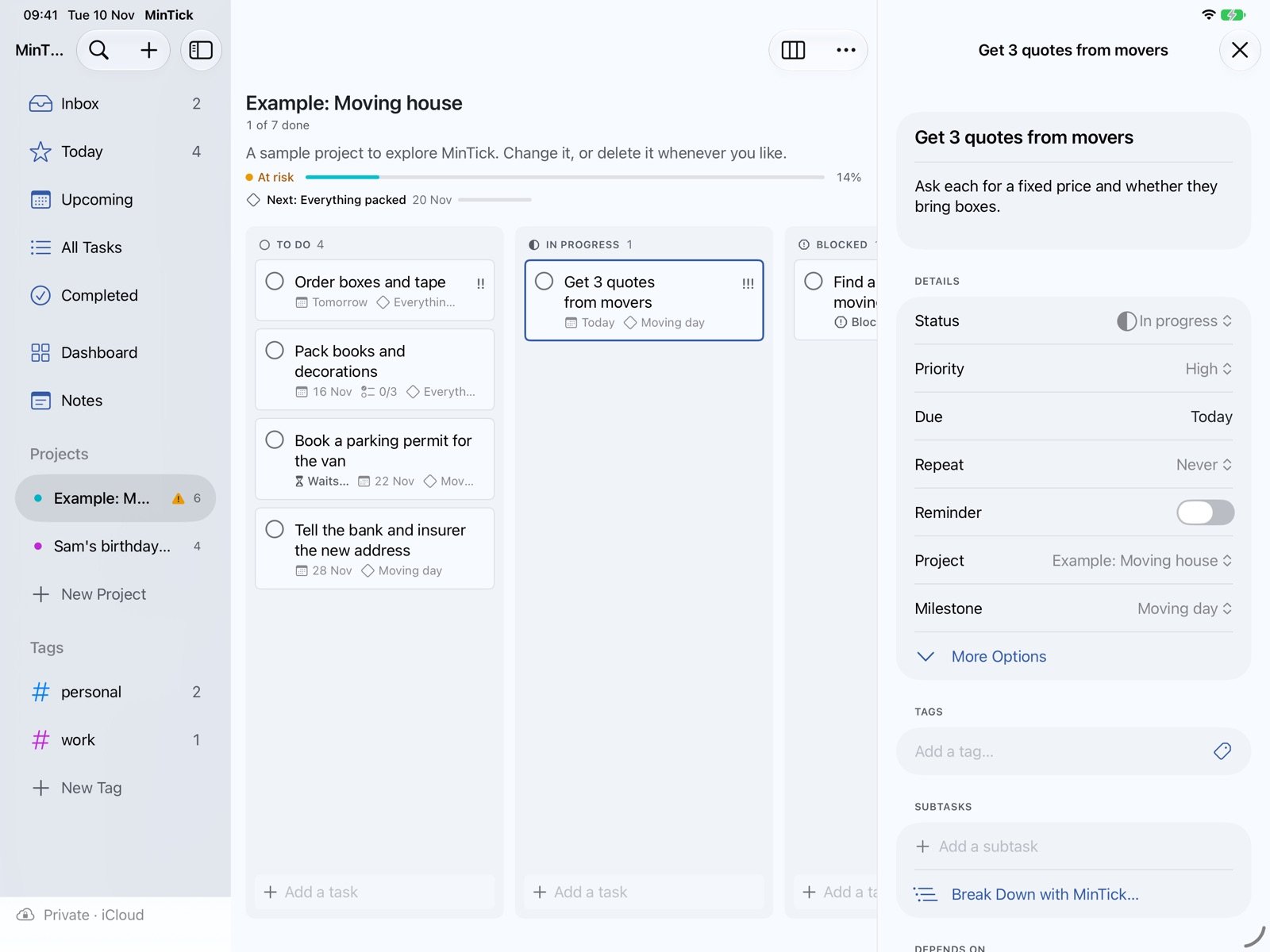
Select a task to open its details beside the list or board. There you set the status, priority, due date, repeat, reminder, project and milestone, and add tags, notes, subtasks and files.
- Depends on: this task comes after another one. It shows “Waits for …” but stays in your lists.
- Blocked: you can’t go on, because of another task or an outside reason (“Waiting for the landlord”). When the blocking task is done, it goes back to work by itself.
- Break Down with MinTick… suggests subtasks. You choose which ones to keep.
Dashboard and MinTick’s help
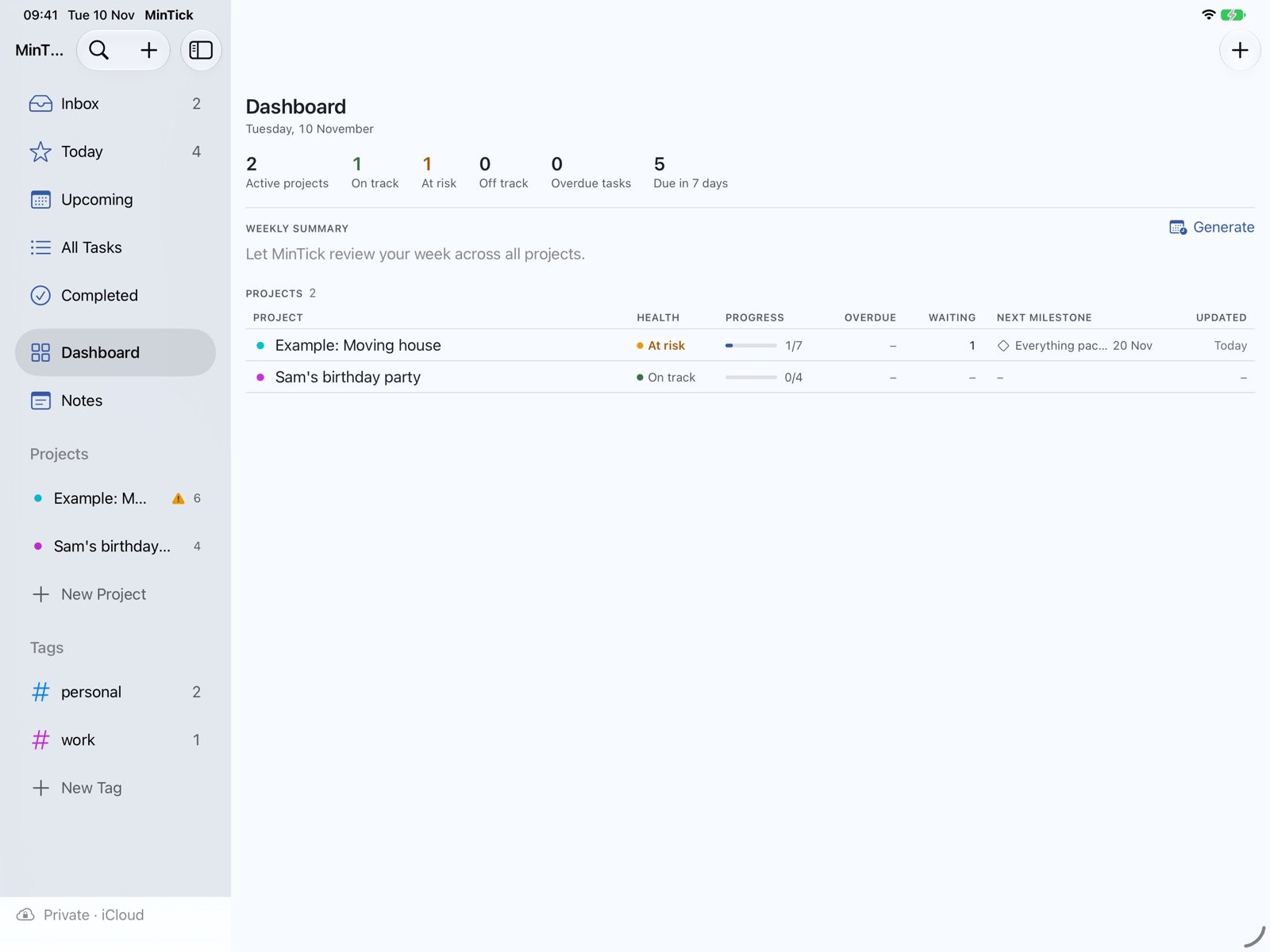
The Dashboard shows all projects in one table: health, progress, overdue and waiting tasks, and the next milestone. With areas (for example Work and Home) you can filter it.
MinTick is also the built-in assistant. It writes a weekly summary (Dashboard ▸ Generate), a project’s executive summary, a draft status update, subtasks, and turns meeting notes into tasks. MinTick only proposes: nothing changes until you accept it.
Find anything, add from anywhere
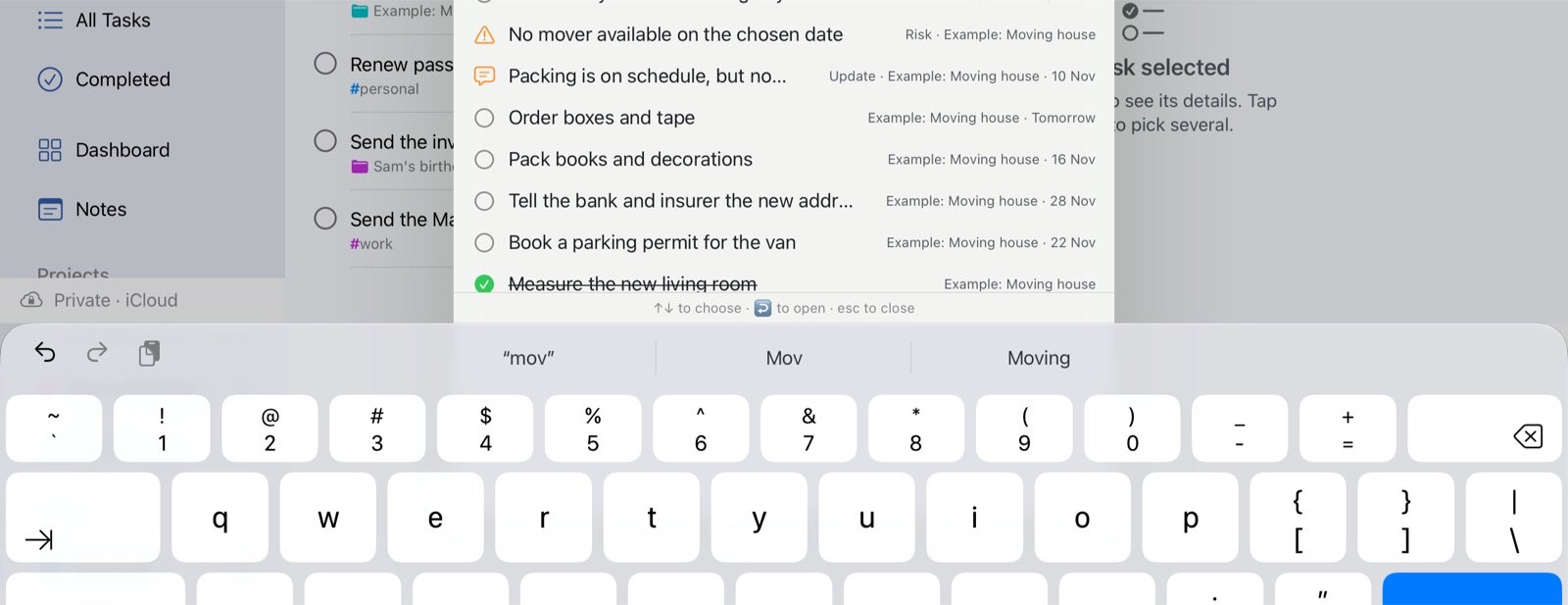
- Search: the magnifier at the top of the sidebar, or ⌘K. It finds tasks, projects, notes, files and commands.
- Mac Quick Entry: press ⌃⌥Space in any app, type a task, press Return.
- Siri: “Add a task to MinTick”. Share: send a web page or file to MinTick from the Share menu.
- Widgets: Today on your Home Screen or desktop; tick tasks off right there.
On iPhone
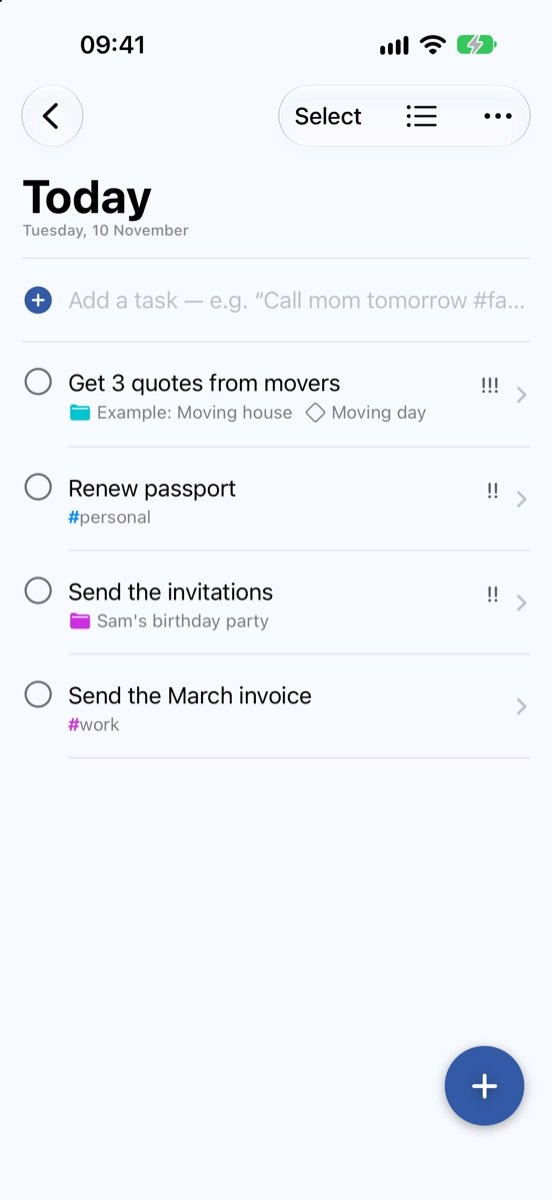
The iPhone is for on the move: check Today, add a task with the round + button, tick things off. Bigger work like boards and the Dashboard is easiest on the Mac or iPad.
Private or Synced
MinTick keeps your data in one of two places. New installs start in Private; you can switch at any time and your tasks come along.
| Private | Synced | |
|---|---|---|
| Your data | On your devices and in your own iCloud | On MinTick’s server (Supabase, EU) |
| MinTick’s AI | Apple Intelligence, on the device | Claude by Anthropic, with a daily limit |
| Needs | The same Apple Account with iCloud | A MinTick account (via Dennis) |
AI in Private mode needs Apple Intelligence: a Mac with Apple silicon, an iPad with M1 or later, or an iPhone 15 Pro or newer, with Apple Intelligence turned on and the device and Siri set to the same supported language, such as English or Dutch. Is that not the case? MinTick works fine without AI, or switch to Synced.
Switch to Synced
- Ask Dennis to add your email address (accounts are invite-only).
- Open Data & Privacy: tap the status line at the bottom of the sidebar, or on the Mac choose MinTick ▸ Settings (⌘,).
- Under Where your data lives, tap Switch to Synced…
- Enter your email, tap Email Me a Sign-In Code, type the code and tap Sign In.
- Tap Switch, then quit MinTick and open it again. Your other devices ask whether to switch too.
File ▸ Export All Data… (Mac) saves a copy of everything at any time.
Keyboard shortcuts
On the Mac and on an iPad with a keyboard (hold ⌘ on iPad to see them all).
| ⌘N | New task |
| ⌘K | Search and commands |
| ⌘1 – ⌘5 | Inbox, Today, Upcoming, All Tasks, Completed |
| ⇧⌘D · ⇧⌘J | Dashboard · Notes |
| ⌥⌘O ⌥⌘L ⌥⌘B | Show as overview, list or board |
| ⇧⌘H | Show completed tasks |
| ⇧⌘R | Weekly summary |
| ⌃⌥Space | Quick Entry from any app (Mac) |
| ⌘? | This guide (Help menu) |
Testing and feedback
You’re one of the first people to use MinTick. Use it for real tasks, and tell us whatever feels odd, slow, unclear or broken. Ideas are welcome too.
- iPhone and iPad: take a screenshot, tap it, then Share Beta Feedback. It goes straight to Dennis through TestFlight.
- Mac: Help ▸ Send Feedback… opens an email with the version already filled in. Or use the TestFlight app.
- Data & Privacy (the status line at the bottom of the sidebar; on the Mac also MinTick ▸ Settings) has the same Send Feedback… button under Help.
Prefer email? Write to
dennis@mintick.nlSay what you did, what you expected and what happened. A screenshot helps a lot.